Bot Burn Tracker help
Bot Burn Tracker sits in your tray and keeps an eye on your Grok weekly usage. One look tells you whether to take on work today, keep a normal pace, go light, or stop until tomorrow.
Version 1.6.7 · 13,030,066 bytes · Lite is free · Full is $29 per PC
What’s new in 1.6.4
- 1Updating from the tray now downloads and starts Setup for you, without the browser blocking it.
New in 1.6.2
- 1Check for updates in the tray works again.
- 2Pop-up notices now say Bot Burn Tracker as their sender.
- 3Repair asks before it runs.
- 4If Get support can’t open an email, it opens the contact page instead.
- 5When you update, Setup opens in front of your other windows.
- 6The tray’s About Bot Burn Tracker item now opens an About view with your version, edition and sign-in status.
New in 1.6.0
- 1The blue Now arrow no longer covers the state words in the middle of the clock (for example, Heavy Workload). The words are always on top.
- 2The Bot Burn Tracker icon shows on the taskbar as soon as the window opens, even right after an update, instead of a plain globe.
New in 1.5.7
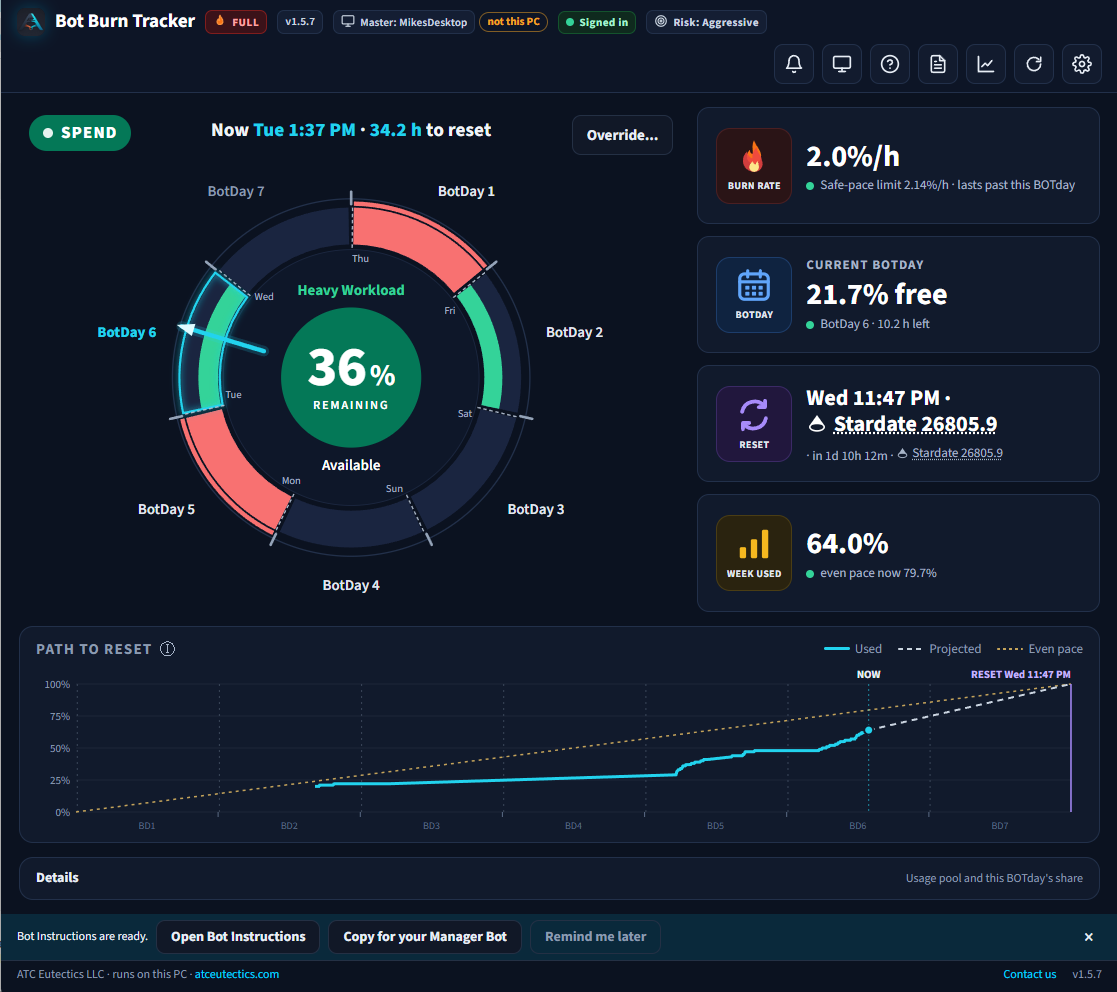
- 1The top row of the clock is back: the state badge on the left, the time and hours to your reset in the middle, and Override on the right, on one line at every window size.
- 2The plain-words advice is in Details, so nothing overlaps the clock.
New in 1.5.6
- 1The clock card is cleaner: nothing overlaps the clock at any window size. The plain-words advice is in Details.
- 2The state, the week number’s colour and today’s sector always agree. If your week is under an even pace, it’s SPEND and green. Today’s sector fills against its share plus what you left unused on earlier days.
- 3The week number’s disc sits exactly in the middle of the clock.
- 4In Settings you can choose when an override takes effect: at STOP (the default) or immediately. You can set, change or cancel an override at any time.
- 5Setup tells you if this version is already installed and offers to reinstall, and warns before installing an earlier version. You always choose.
- 6No more flashing windows when the tracker starts or you sign in.
New in 1.5.4
- 1The state (SPEND, COAST, HOLD or STOP) is a coloured badge in the top-left corner of the clock. The plain-words advice is in Details.
- 2Override is a button on the right of the clock. You can set it at any time, on any PC, in Lite or Full. While it’s on, the button says Override active, with Change and Cancel, and the clock shows OVERRIDE ACTIVE.
- 3The state looks at the day first and then the week. If your week is under an even pace, the state moves up toward SPEND, even when today’s share is used. For example, 40% left with under two days to go is SPEND. If your week is over pace, it moves down toward COAST or HOLD.
- 4The week number in the middle of the clock sits on a coloured disc: green when the week is on or under pace, amber when it’s a little over, and red when it’s well over or stopped.
New in 1.5.3
- 1A new clock dashboard. Your week is a clock with one sector for each day of your Grok week, and the needle shows where you are now. The Now line, with the time left to your reset, sits above the clock. Hover a sector for its details.
- 2Reports use the same clock style: one week clock for each week, plus a ring for each week’s use, with clear week names.
- 3A badge in the top bar shows whether you’re signed in to Grok. Click it to go straight to sign-in.
- 4Unlock Full is now on the top bar.
- 5Details is for information only: your usage pool and today’s share. Actions such as Sign in, Override and Refresh are in Settings.
- 6If Risk is set on another PC, Settings says which PC and how to change it.
- 7The Bot Instructions bar has Remind me later, which hides it until you open the app again.
- 8Smoother setup: the Grok sign-in opens in your browser after you click Finish, with no extra windows.
New in 1.4.2
- 1Your weekly usage comes straight from your Grok account. The main number is your weekly pool, and each product Grok reports is listed under it, such as Grok Bot and Grok Build.
- 2If a reading doesn’t come through, the tracker keeps your last good number and labels it as the last reading. It never shows a made-up 0%.
- 3The weekly reset comes from Grok and is shown in your PC’s local time.
New in 1.3.0
- 1When an update is available, Get it downloads the installer and opens the normal setup wizard. It never installs silently, and the new copy opens when you click Finish.
- 2It only downloads the official installer from atceutectics.com.
- 3Smoother installs: setup closes the running tracker first and tells you plainly if something is still open, with a Retry.
- 4The week chart shows your real usage windows with labels, the reset time, and a countdown.
- 5At 98% of the week it shows a hard stop. Lifting it takes an explicit Authorize that is logged and lasts until the weekly reset.
What it does
- 1Reads how much of your Grok week you’ve used and when it resets
- 2Splits the week into a fair share for each day
- 3Shows one state in the tray, so you know where you stand at a glance
- 4Opens a clock dashboard for your week, with your path to the reset and clock-style Reports
- 5Sends an alert when the state changes
Lite or Full
Lite Free
- Tray icon and status page
- Clock dashboard and week chart
- Alerts
Full $29 per PC
- Everything in Lite
- Your bots check the state before they take on work
- Borrow from tomorrow’s share, and undo it
- Bot Alerts: your Manager Bot gets one message per state change (SPEND, COAST, HOLD, STOP)
- Free updates for life
One-time price, one PC. Lite turns into Full when you enter an unlock code, with no reinstall.
Download and install
Windows
- Download the installer (
.exe). - Run it. If Windows says it protected your PC, click More info, then Run anyway.
- Sign in to Grok. When you click Finish, setup opens the Grok sign-in in your browser, so just finish it there. If you’re already signed in, it skips this step.
Being signed in on grok.com isn’t enough; the tracker needs this sign-in on your PC.
- That’s it. The tracker starts with Windows and its icon appears in your tray. The top bar shows Signed in. If it ever shows Not signed in, open Settings and click Sign in.
WSL or Linux
Coming soon.
Your download has started. Want a heads-up when there’s an update? Get alerts by text, email or both.
Both downloads start as Lite. Full is the same download plus an unlock code. The Windows installer comes with an uninstaller.
Get Bot Burn Tracker update alerts
Leave your email, and your mobile too if you’d like texts.
What each state means
 SPENDHeavy Workload Available
Your week is under an even pace, so heavy work is fine. This holds even if today’s share is used. Unused share from earlier days rolls into today on its own.
 COASTKeep a Steady Pace
You’re about on pace for the week. Keep regular work going and save big builds for later. Days start balanced, and only Override borrows from future days.
 HOLDHold New Heavy Work
Today’s share, plus anything rolled over from earlier days, is used up, and your week isn’t under an even pace. Finish what’s open and start new heavy jobs after your daily Grok reset.
 STOPStop Heavy Work for Now
You’re over pace for the week. Pause bot work, or use Override to borrow from tomorrow’s share.
 NO READINGNo reading yet.
The tracker couldn’t read your Grok usage. Wait a few minutes, then click Refresh. If the top bar says Not signed in, open Settings and click Sign in.
Each PC follows its own state. Every alert names its PC, so go by the latest alert for each PC by name. An override keeps that one PC working while the other PCs stay stopped. An override on one PC never relaxes another PC.
Only for work not tied to a specific PC, or when you’re unsure, play it safe and follow the strictest state. Strictest to least strict: STOP > HOLD > COAST > SPEND.
Your PC code and unlock code
- After you install, the tracker shows a short PC code. It’s made from this PC and never includes your login or account details.
- In the tracker app, click Unlock Full on the top bar, then the Unlock Full button under Full on this PC. That opens the unlock page with your PC code filled in.
- We send back your unlock code.
- Paste it in the way the next section describes. Lite turns into Full right away, with no reinstall.
The unlock code is checked on your PC, so it works offline. Each code fits one PC.
Entering your unlock code
Once you’ve paid, the code arrives by email, or by text if you asked. It’s for the PC you bought it on, and putting it in only takes a moment.
- Copy the whole code. It’s fine if it wraps.
- Open Bot Burn Tracker on the PC you bought it for.
- Open Settings (the gear on the top bar). Under Full on this PC, click “Already have a code? Paste it here” and paste the code into the box that says “Paste your unlock code here.”
- Press Unlock. When you see “Full is on. Thank you!” you’re done, and Full stays on.
The code only works on the PC it was bought for. It’s tied to that PC code, so another computer needs its own.
If the app says “That code doesn’t match this PC,” check that the PC code under Full on this PC (This PC’s code) matches the one in your email, then write to help@atceutectics.com. We’ll help you get Full on.
FAQ
- Where do the numbers come from?
- It reads the same usage numbers Grok shows you. If Grok changes how it reports usage, we push an update.
- Do I have to reinstall to go Full?
- No. Click Unlock Full on the top bar, then under Full on this PC click “Already have a code? Paste it here,” paste your code into the box that says “Paste your unlock code here,” and press Unlock. When you see “Full is on. Thank you!” the same install has turned into Full, and it stays on.
- Can I use Full on a second PC?
- Full is $29 per PC, and each PC has its own PC code and unlock code.
Get support
Stuck on install, a state that looks wrong, or an unlock code that won’t take? Email us and include your PC code.